User and Permission Management
Spending too much time manually setting permissions for every new employee? The user management module lets you assign access in seconds using predefined system roles and departments, while keeping full control over data visibility. Artificial intelligence analyses login history and visited pages to automatically detect anomalies in account behaviour.
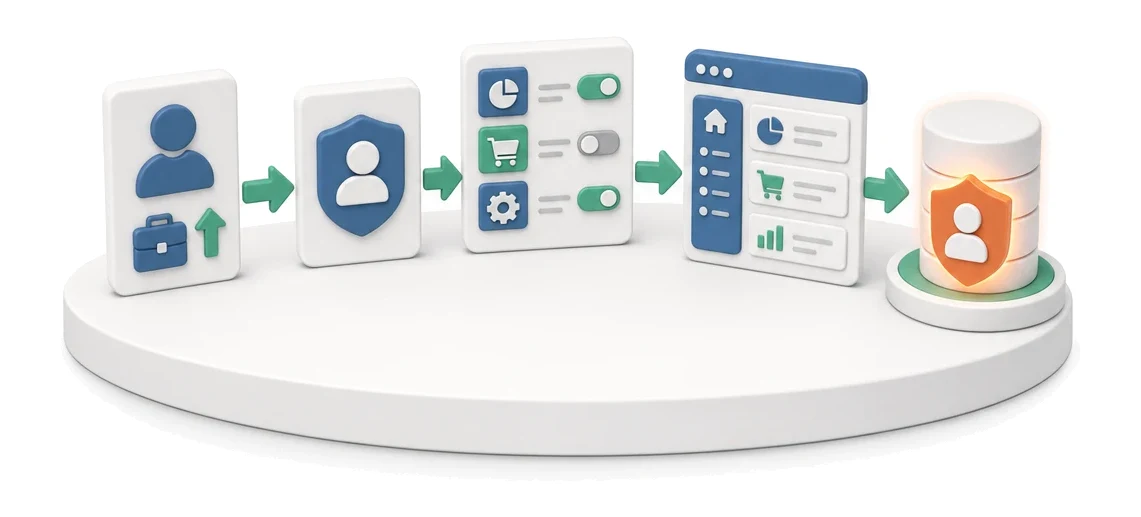
- Input
- New employee / change of position
- Flow
- Role → module permissions → menu seen by the employee
- Output
- Account with the correct access scope
What changes in the company after the rollout
Roles define what a user can see and do. A new employee gets access by being assigned a role, not by configuring individual options.
Faster employee onboarding
Access is granted instantly by assigning a predefined system role.
Security of company data
A precise permission tree ensures employees see only what they need to do their jobs.
Full transparency of actions
A detailed activity history and visited pages log let you closely track each user’s work in the system.
Easier structure management
Grouping accounts by department makes it simple to mirror your real organisational hierarchy in the system.
Clean analytics data
The option to exclude company IP addresses prevents administrators from skewing statistics.
How this process looks in Process App
Zrzuty pochodzą z działającego systemu — kliknij, aby powiększyć.
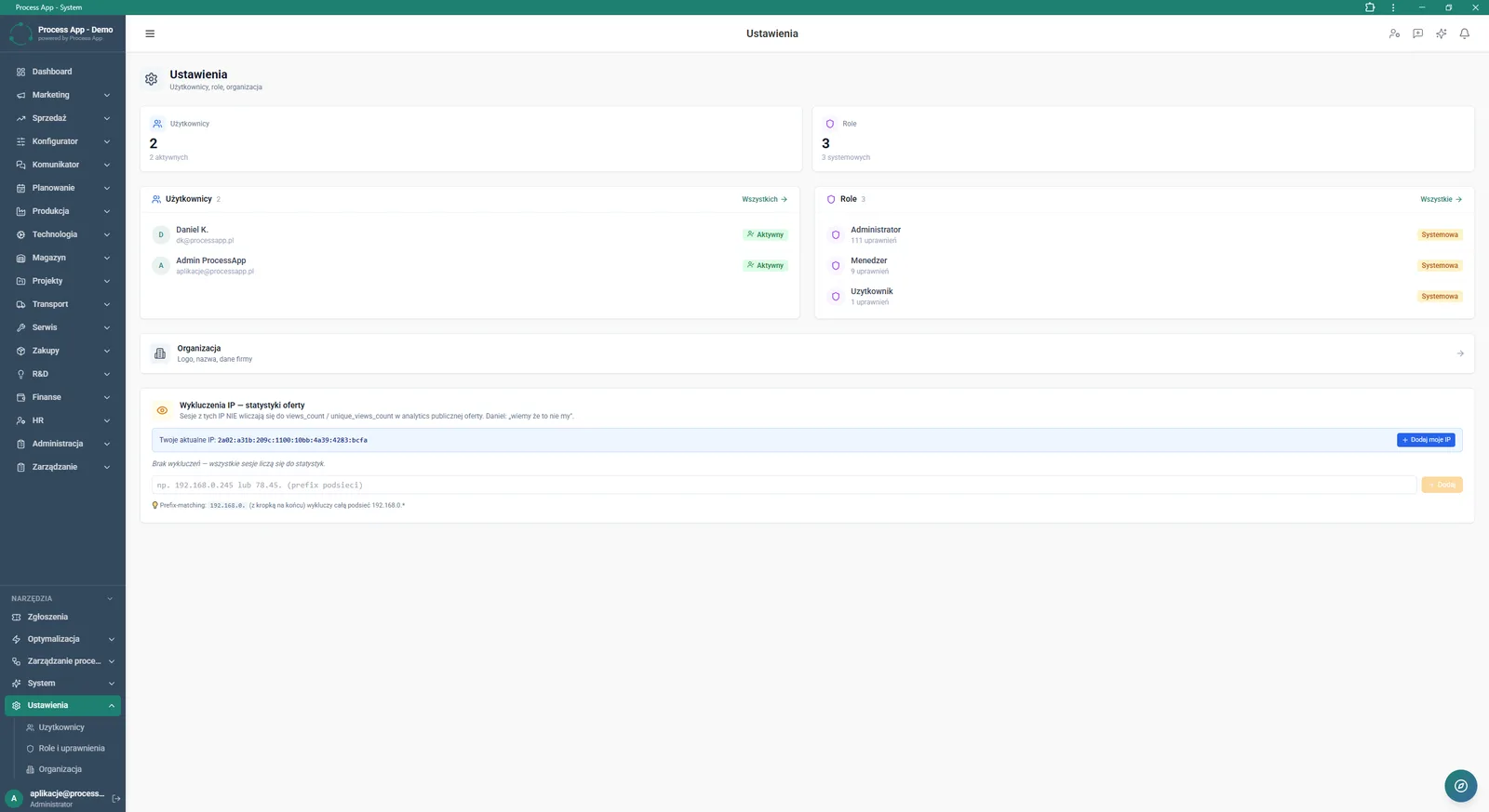
Main system settings screen showing a summary of the number of users and roles, lists of active accounts and system roles, access to organisation data, and configuration of IP exclusions for statistics.
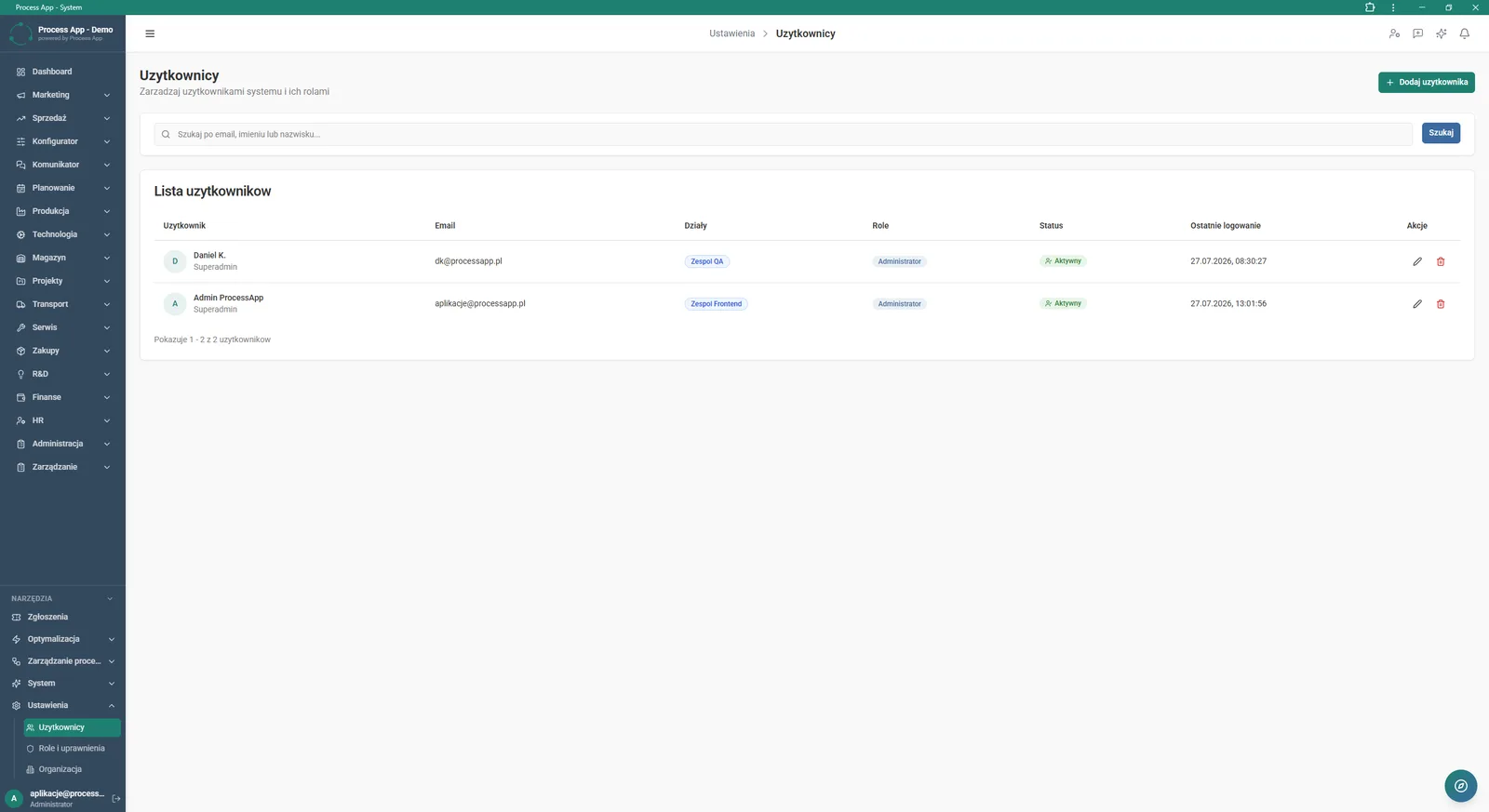
Users screen showing the list of accounts in the system with a search bar and the option to add a new user.
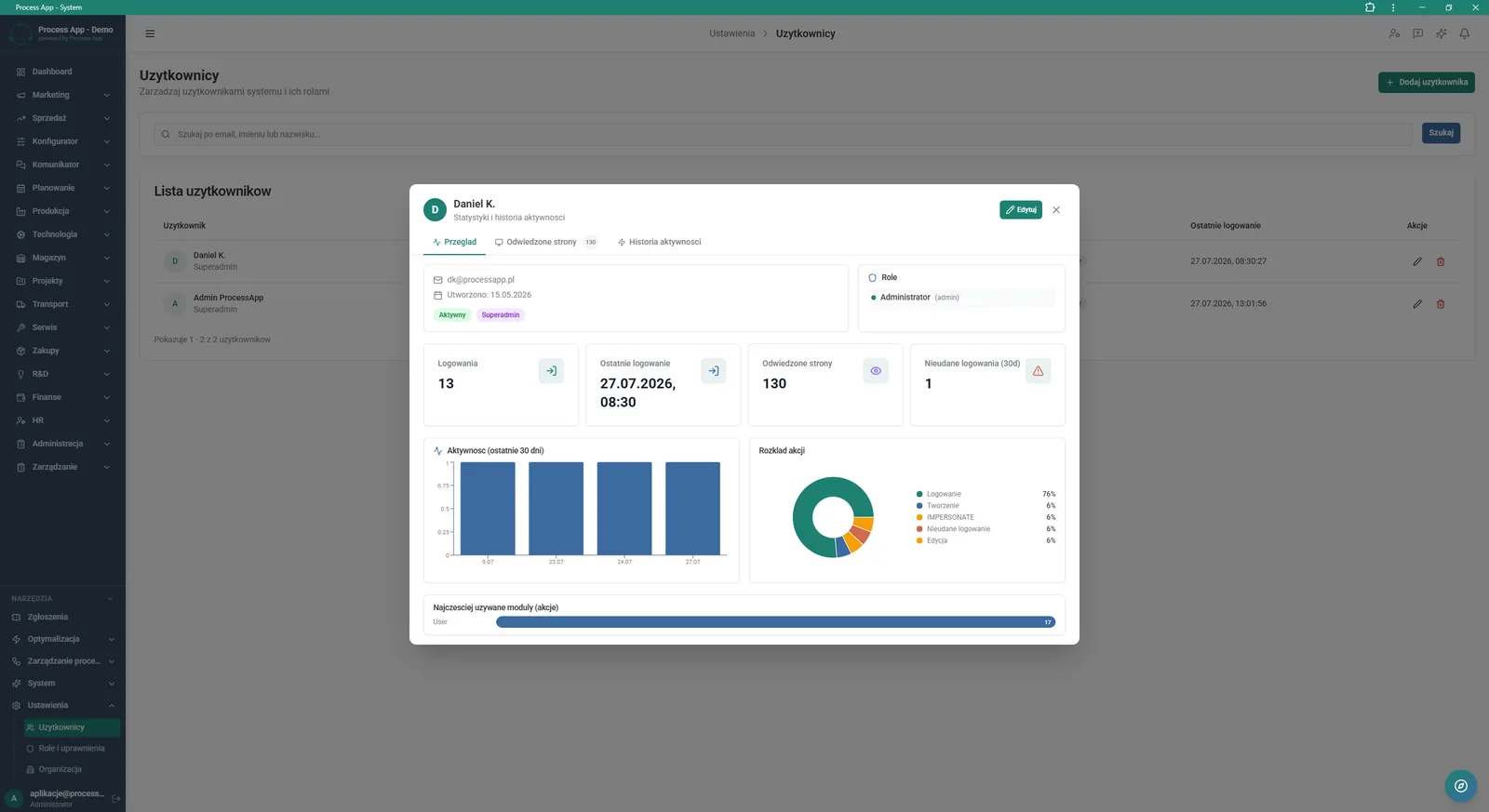
Detail view of a selected user as an overlay on the Users screen, showing their statistics, assigned roles, activity charts and login history.
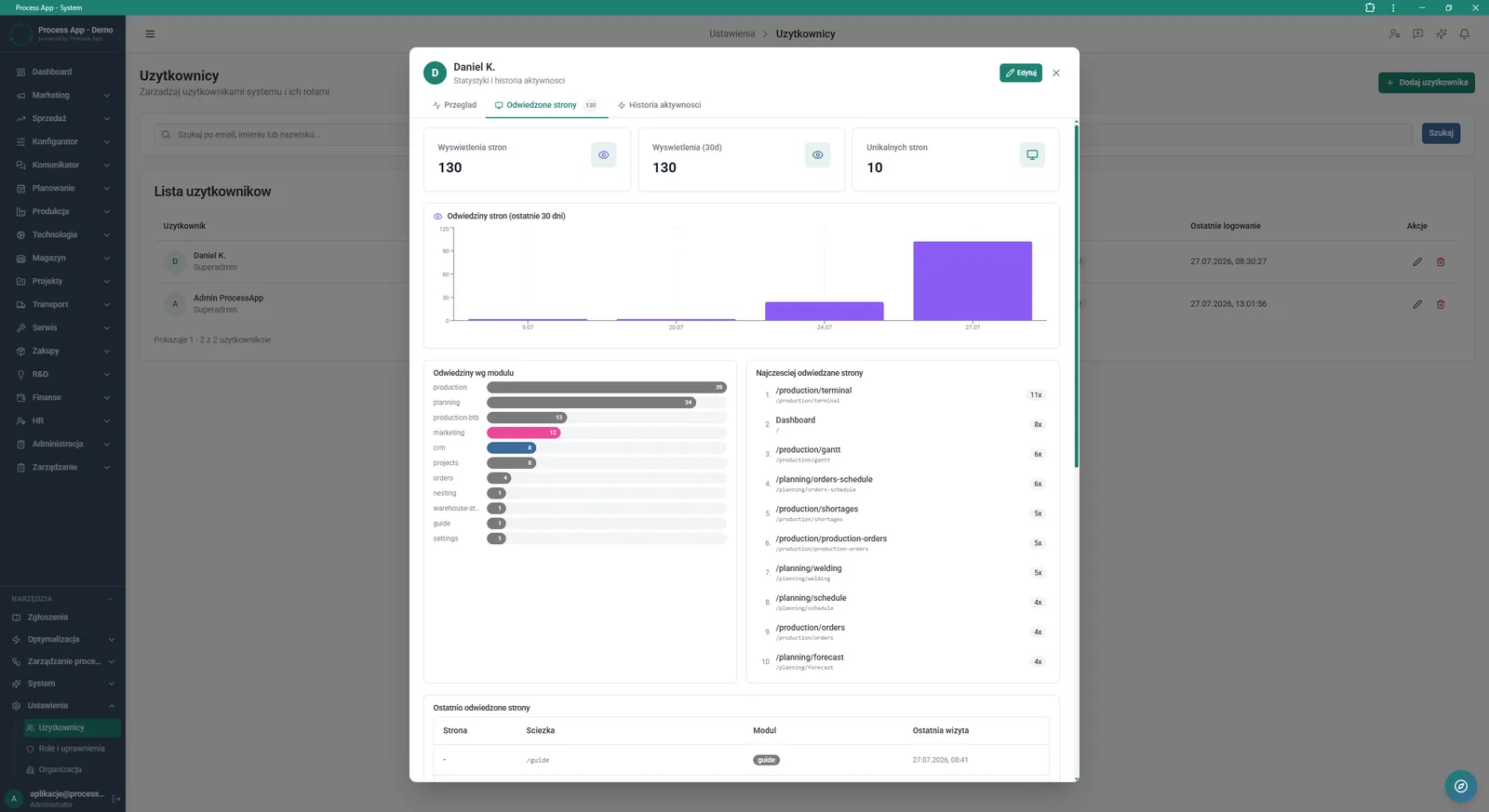
User detail view with the visited pages tab open, showing view statistics, activity charts and lists of the most frequently and most recently visited areas in the system.
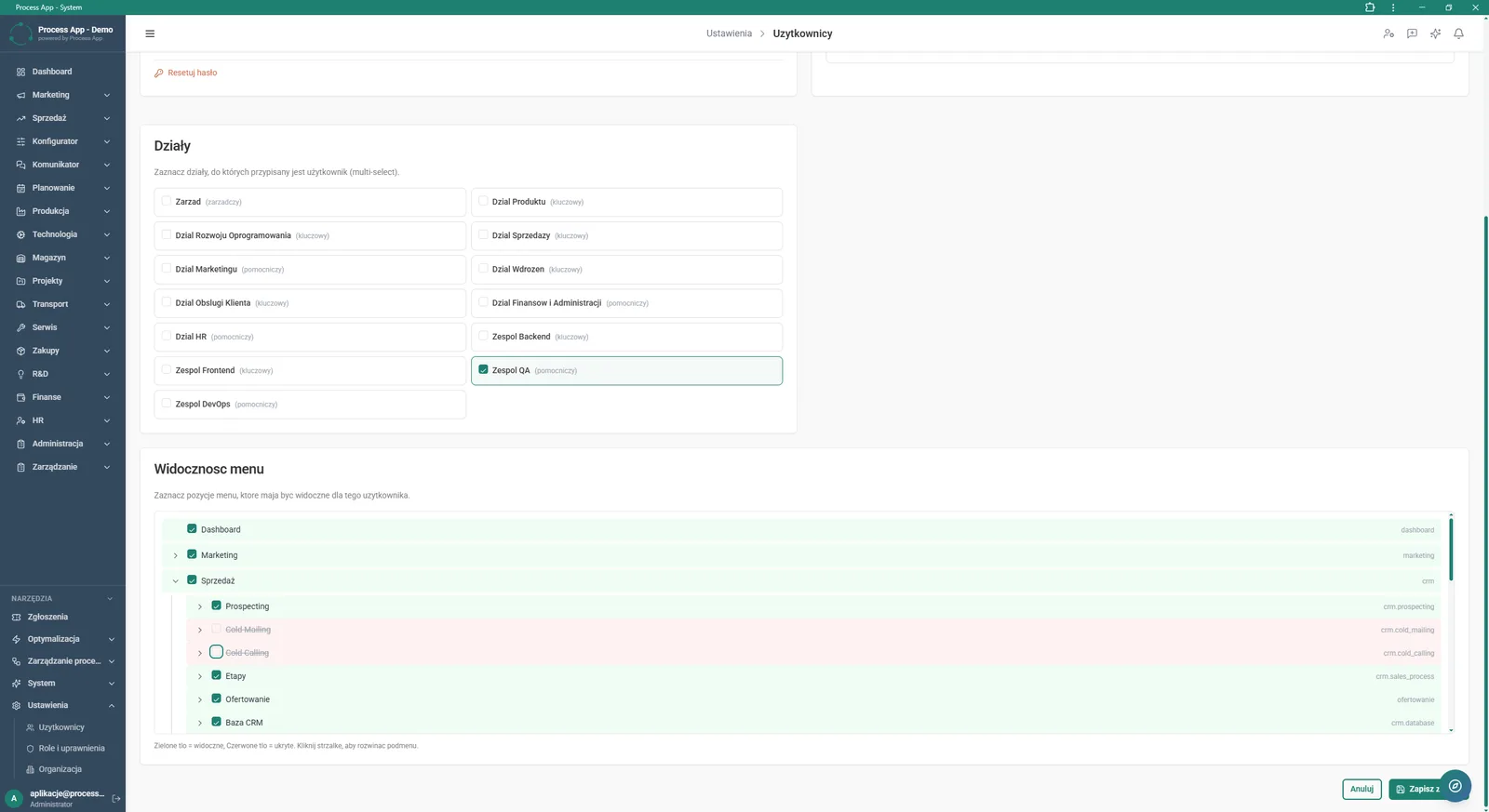
User account configuration screen in the Settings section, showing options to assign the user to company departments and a detailed tree for managing the visibility of individual menu items.
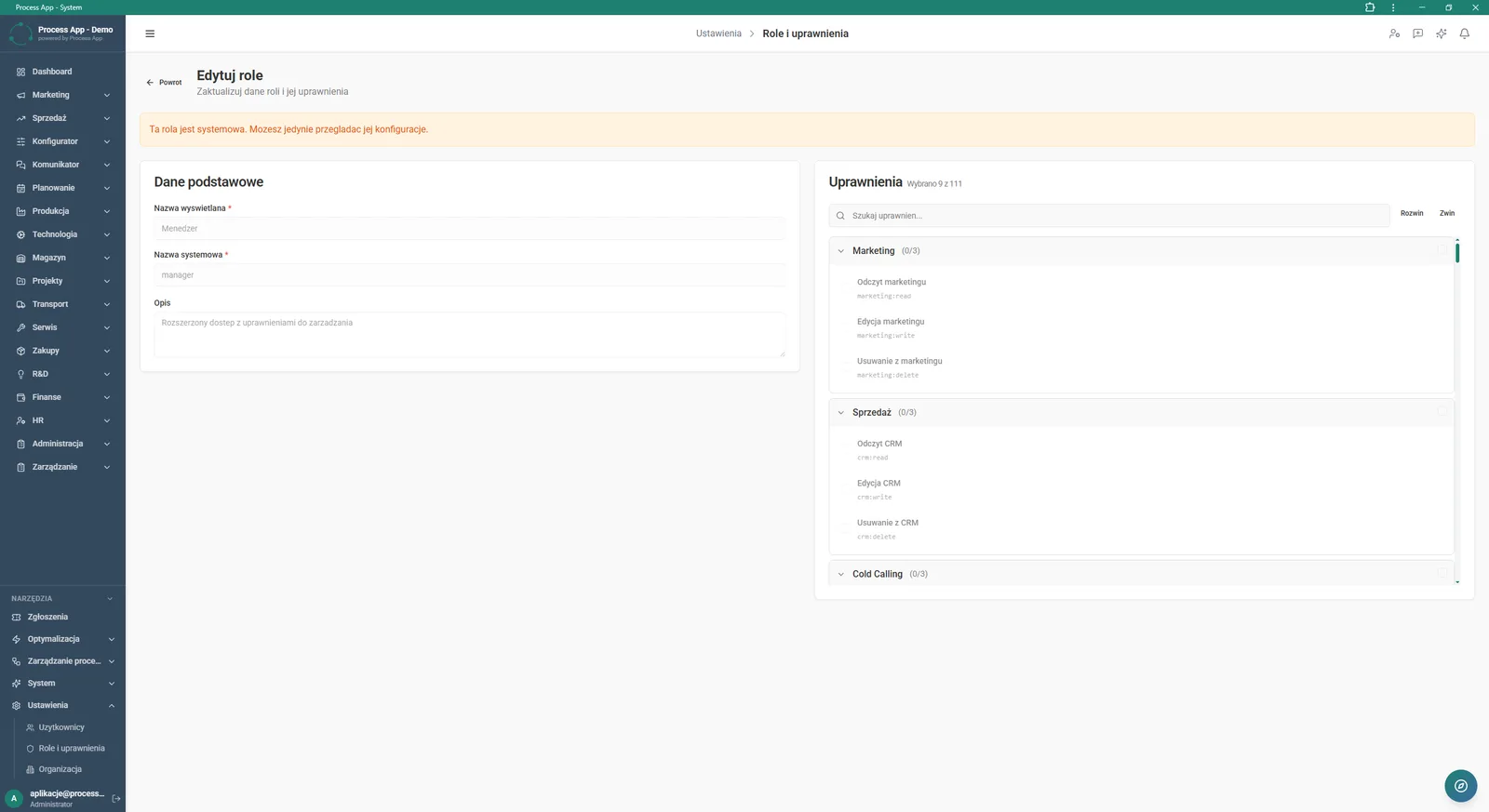
System role editing screen showing basic role data and a detailed permission tree broken down by application modules.
What exactly you get
System role configuration
The system allows you to create and edit roles using a detailed permission tree for individual modules.
Menu visibility management
The administrator can enable and disable access to specific tabs using a hierarchical visibility tree.
Account activity analysis
The application generates bar and pie charts showing the distribution of actions and a user’s login history.
Tracking visited pages
The module records the most frequently and most recently visited paths in the system, including the date of last visit.
IP address exclusions
A user can add their own IP address or subnet prefix to an exclusion list for statistics.
Account search
The user list supports fast profile search by email address, first name or surname.
What AI does for you in this process
Login anomaly detection
Artificial intelligence analyses failed logins and unusual access times to warn about potential account breaches.
Permission optimisation
Algorithms analyse the most frequently used modules and visited pages, suggesting the removal of unused access rights.
User activity profiling
Artificial intelligence processes the history of actions such as create and edit, categorising each employee’s working style.
Intelligent reporting
The system analyses view statistics and unique pages, automatically generating summaries of team engagement in the system.
The process from start to finish
Manage access to the system in a centralised and secure way. Assign new employees to the right system roles instead of configuring individual options for each account. Control menu and tab visibility with a clear permission tree, aligned to your organisational structure and departments.
Monitor each user’s activity, checking their last logins, visited pages and most frequently used modules. Review activity charts and action breakdowns to gain full insight into how your team uses the application. When needed, quickly reset an employee’s password or edit their profile directly from the user list. Exclude your own IP addresses from statistics to keep your analytics data clean.
See this process on your own data
We will walk you through the “User and Permission Management” module using your company as the example — the input, the flow and the end result in Process App.
Explore the remaining system modules
Support Ticket Handling
On-screen Feedback (Comment Mode)
Optimization Analysis
AI prompts and automation management
Lead Generation
Prospecting
Cold Mailing
Cold Calling
Sales Opportunity Management
Quotation Preparation
Offer Preparation and Sending