Support Ticket Handling
Drowning in a flood of emails with technical support requests and bug reports? This module lets you receive, process and resolve user issues in a structured way, all in one dedicated place. The built-in AI Assistant analyzes the ticket before it’s sent and actively asks the user to fill in missing information.
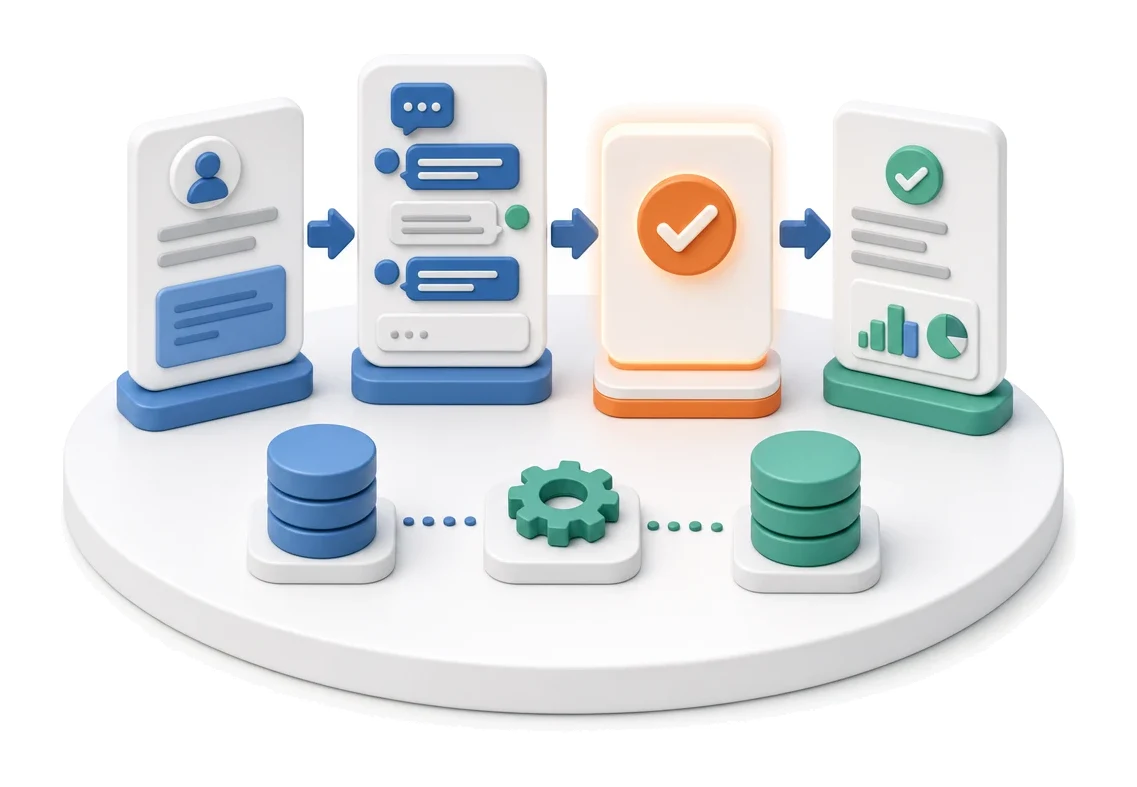
- Input
- User ticket
- Flow
- Ticket → support thread → resolution and closure
- Output
- Resolved ticket with full history
What changes in the company after the rollout
Drowning in a flood of emails with technical support requests and bug reports? This module lets you receive, process and resolve user issues in a structured way, all in one dedicated place. The built-in AI Assistant analyzes the ticket before it’s sent and actively asks the user to fill in missing information.
Faster problem resolution
All information, recordings and conversation history live in a single thread, eliminating the need for back-and-forth clarifications.
Fewer incomplete tickets
Content validation before sending means the support team receives complete, ready-to-use data from the start.
Better status visibility
Summary tiles let you instantly assess support workload and the number of open cases.
Contextual error reporting
The ability to pin comments directly to interface elements drastically cuts the time needed to describe a problem.
Easier visual communication
Built-in screen and voice recording lets users accurately show a problem without relying on external tools.
How this process looks in Process App
Zrzuty pochodzą z działającego systemu — kliknij, aby powiększyć.
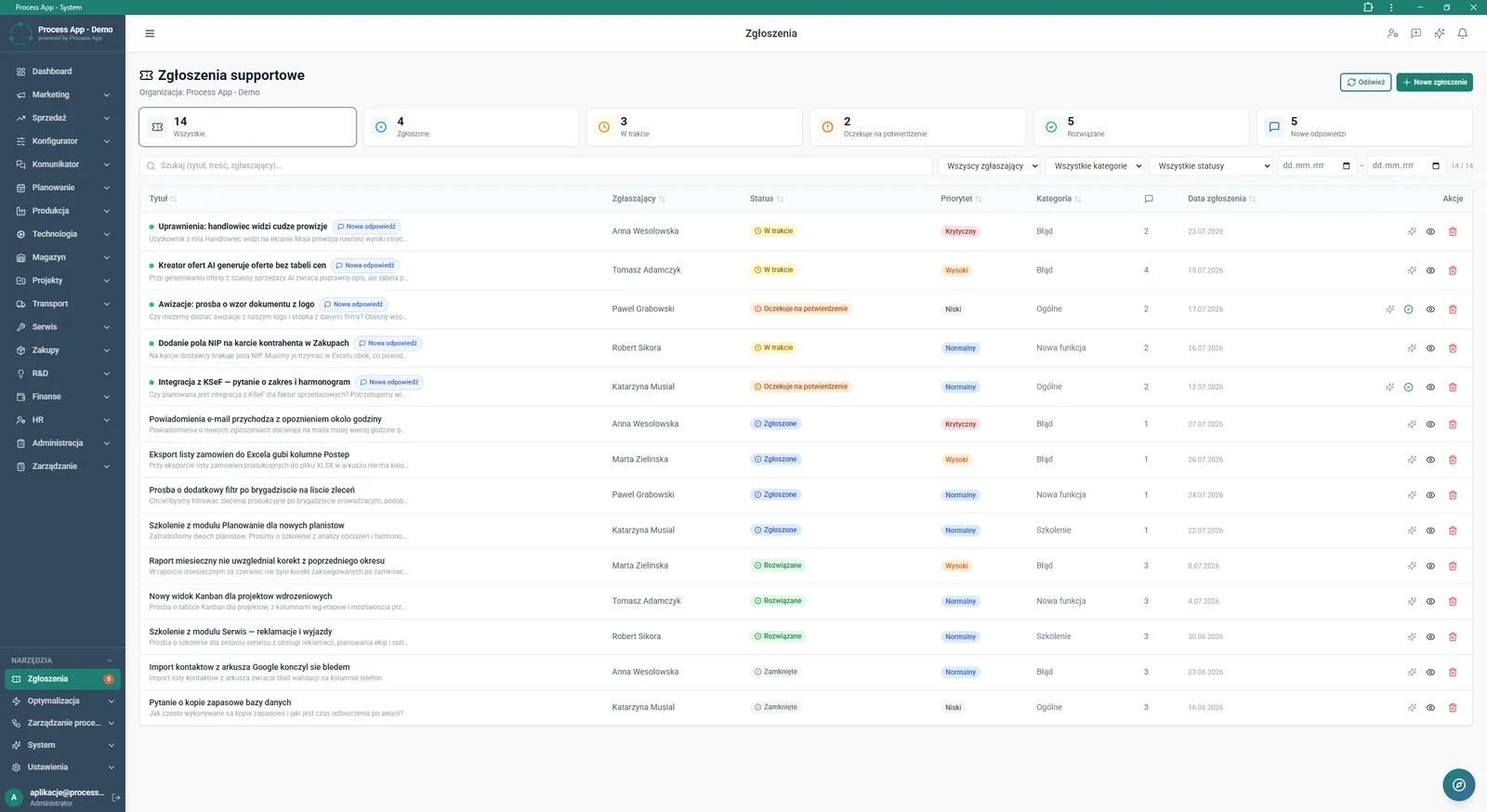
Support ticket list screen showing status summary tiles, filtering options and a table with the ticket register.
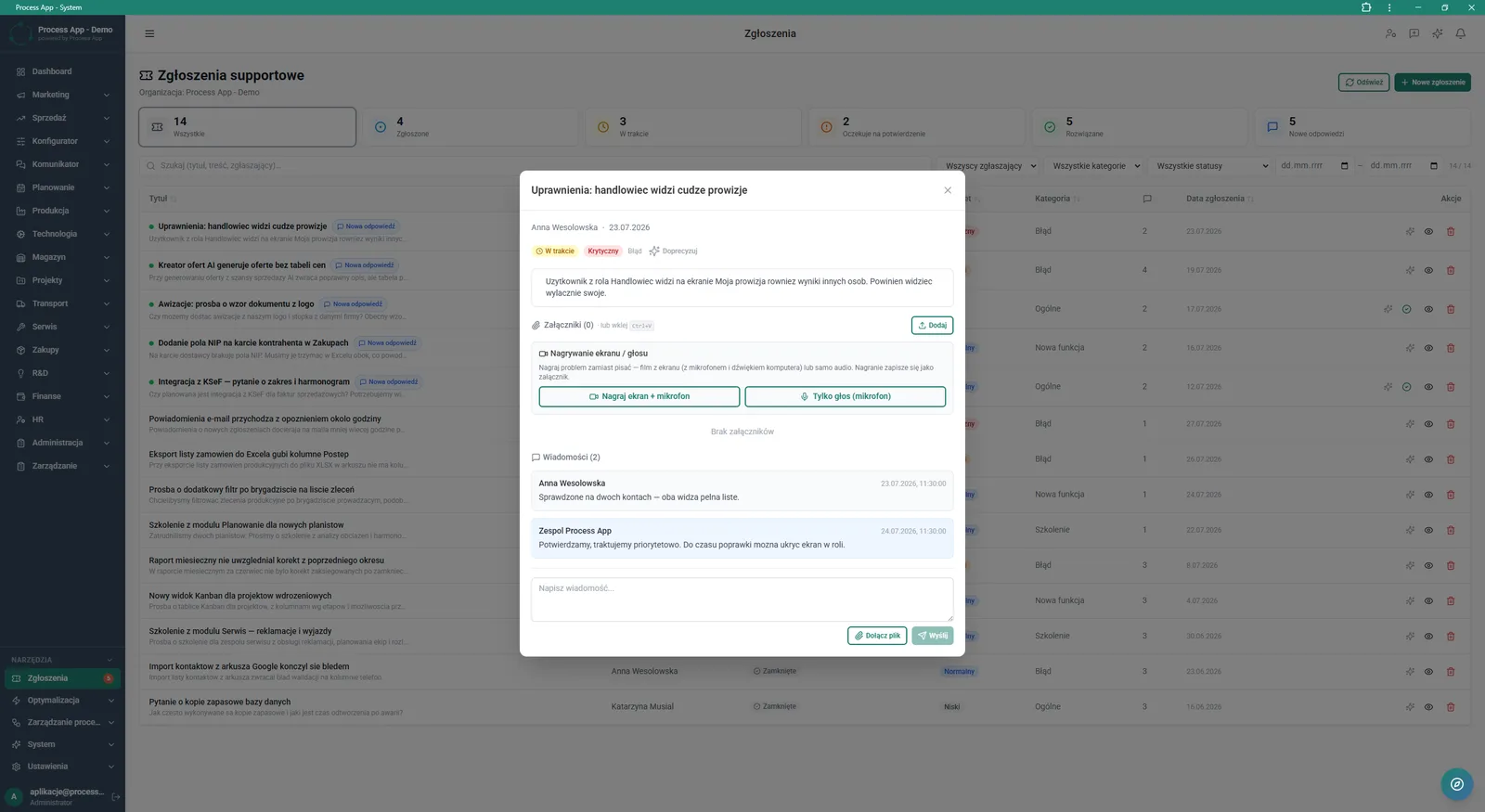
Detail view of an open support ticket in a modal window, showing the problem description, options for adding multimedia attachments, and the conversation history.
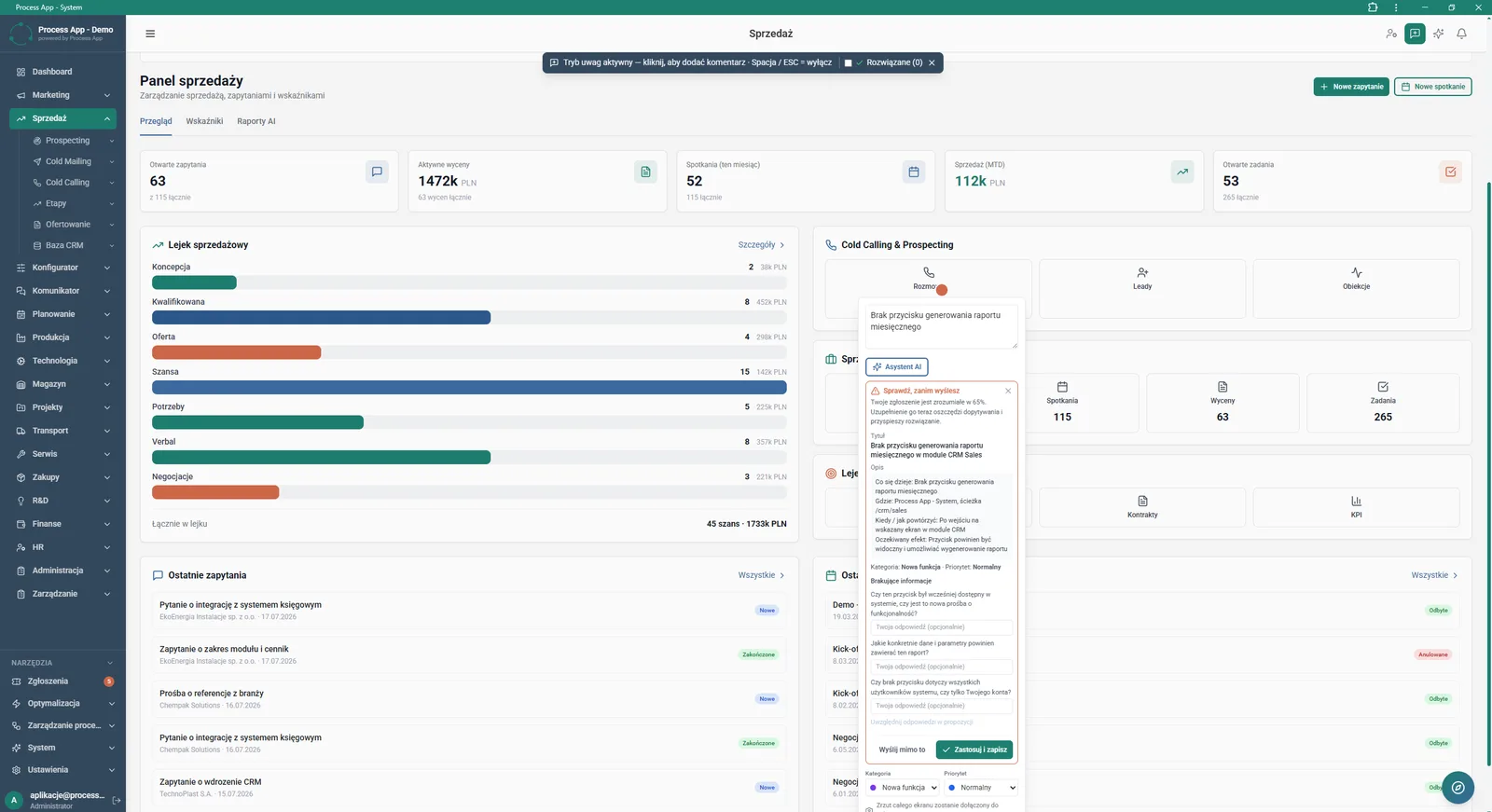
Sales Panel screen with comments mode active and the AI Assistant window open, analyzing the ticket content before sending and asking to fill in missing information.
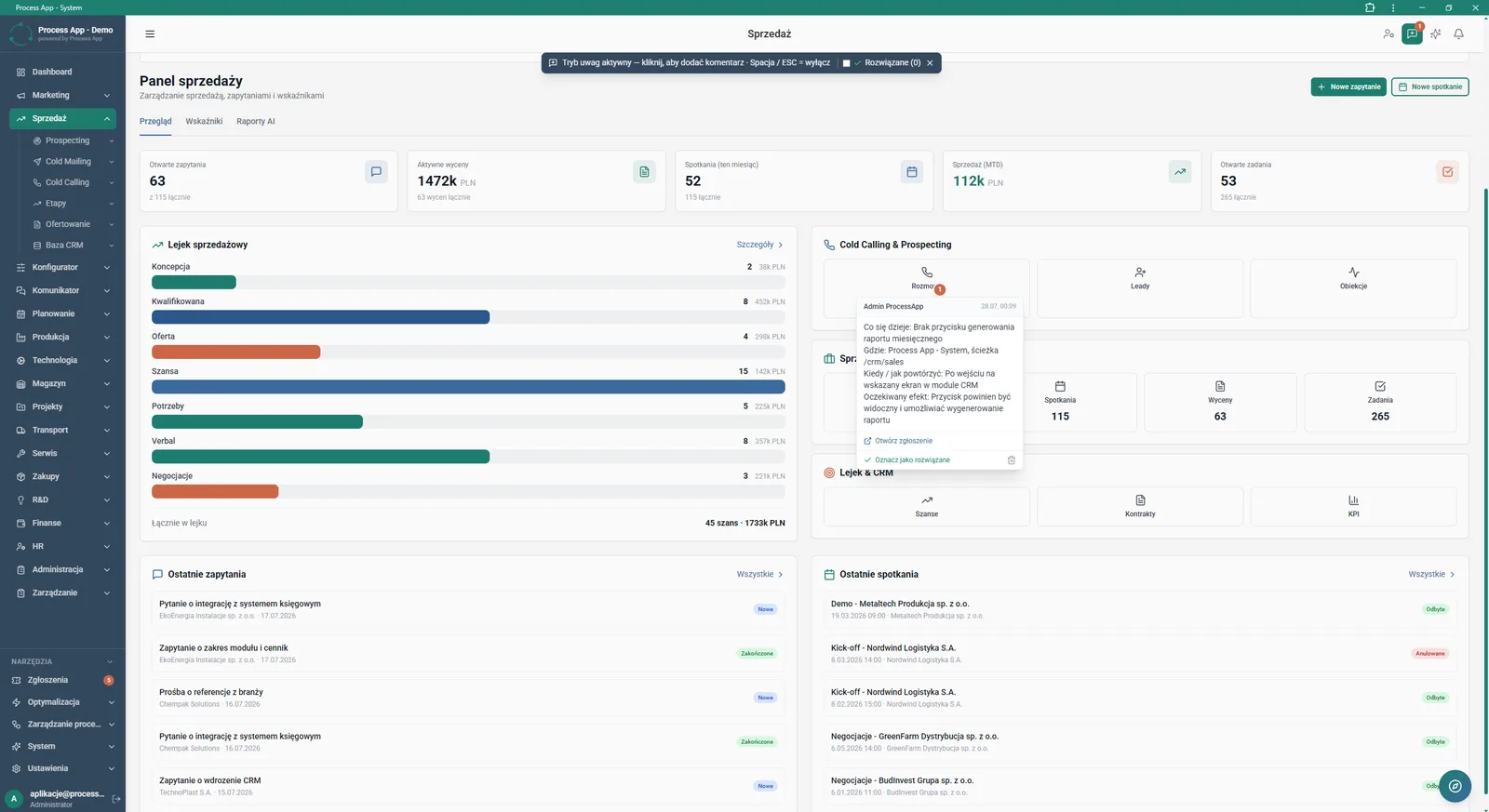
Sales Panel screen with comments mode active, showing the ticket detail window pinned directly to a specific interface element.
What exactly you get
Interactive ticket list
The system presents a ticket list with filtering options by reporter, category, status and date.
Screen and voice recorder
The module enables screen video recording with microphone audio directly from the ticket detail window.
In-UI comments mode
The application allows creating tickets pinned to specific places on the screen, with an option for automatic screenshots.
Threaded communication management
The system maintains a full message history with date and author, and lets users add attachments to new replies.
Categorization and prioritization
Users can assign categories such as bug or new feature and define the priority for each ticket.
What AI does for you in this process
Ticket content analysis
The AI Assistant analyzes the entered problem description before it is finally sent to the support team.
Missing information detection
Artificial intelligence detects gaps in the ticket and generates follow-up questions to clarify them.
Automatic data completion
AI lets the user’s answers be quickly applied and saved directly into the ticket form.
The process from start to finish
Manage all issues and requests from a clear, centralized list of support tickets. Continuously monitor dashboard tiles with key stats to see how many cases are in progress and how many are waiting for confirmation. Review ticket details, verify message history and communicate with the team directly in the thread. Use the contextual comments mode to pin tickets directly to interface elements, for example in the Sales Panel. Streamline communication by adding attachments, screen recordings with microphone audio, or standalone voice notes to each ticket. Filter the ticket list by status, priority and category to quickly find critical bugs or new feature requests.
See this process on your own data
We will walk you through the “Support Ticket Handling” module using your company as the example — the input, the flow and the end result in Process App.
Explore the remaining system modules
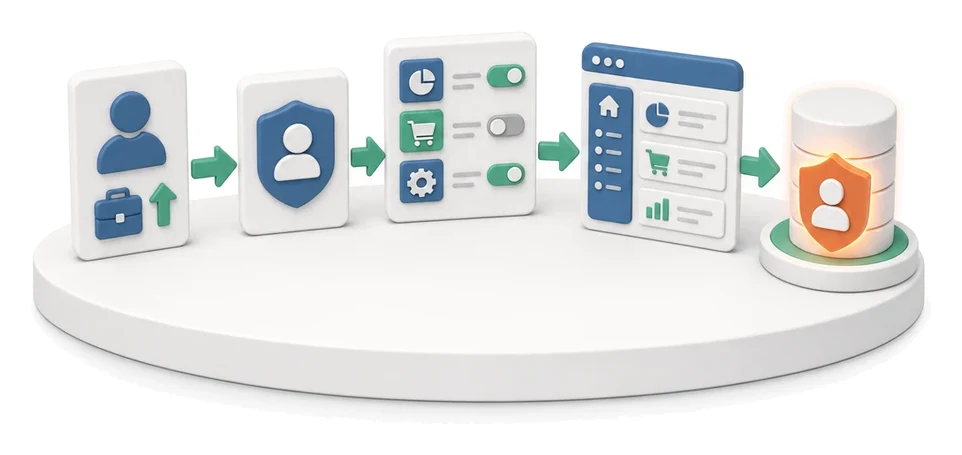
User and Permission Management
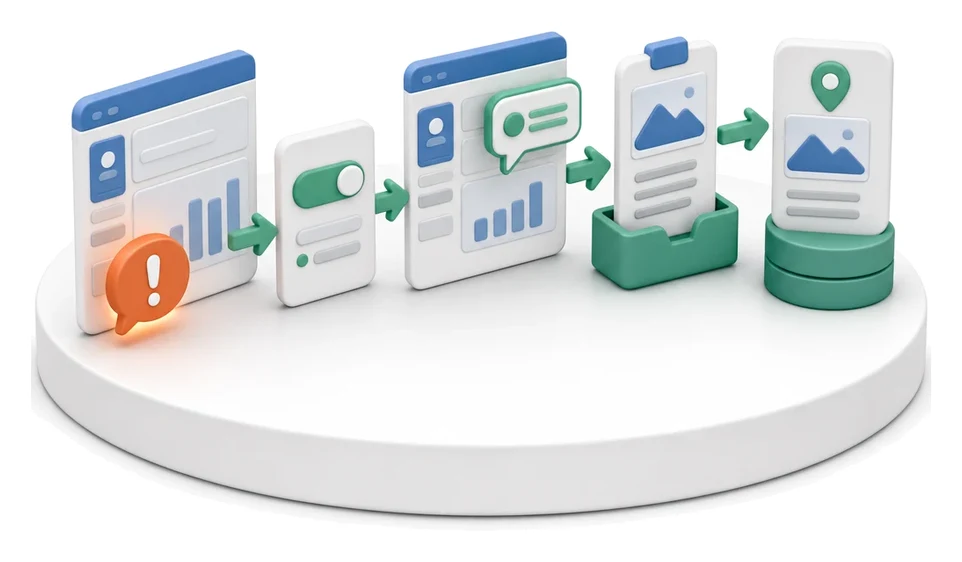
On-screen Feedback (Comment Mode)
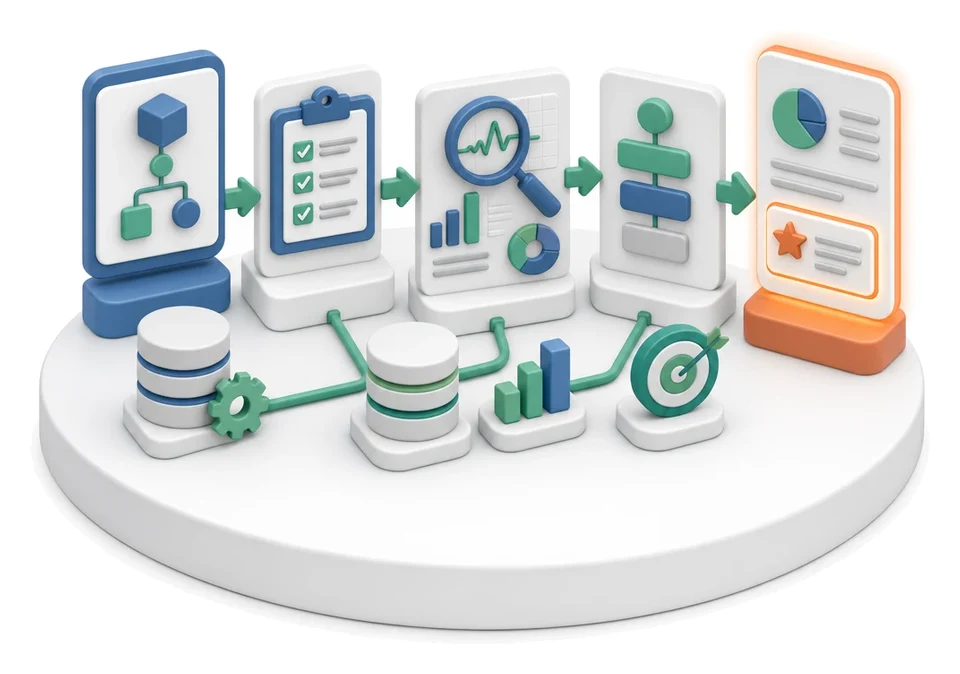
Optimization Analysis
AI prompts and automation management
Lead Generation

Prospecting

Cold Mailing
Cold Calling

Sales Opportunity Management

Quotation Preparation
Offer Preparation and Sending