On-screen Feedback (Comment Mode)
Do you waste time describing errors and explaining exactly where in the system the problem occurred? This module lets you submit feedback directly from the screen by pinning a speech bubble, which automatically creates a ticket with a screenshot and full context. Artificial intelligence analyses the ticket content to instantly suggest the right category and priority.
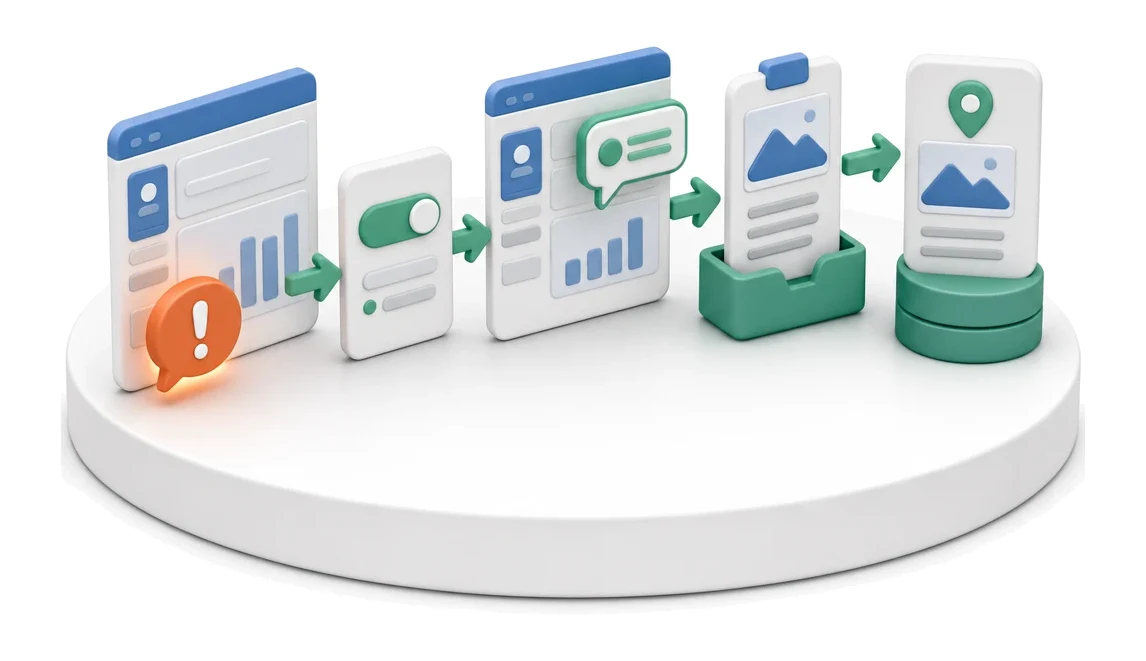
- Input
- User feedback on the screen
- Flow
- Enabling comment mode → bubble on the screen → ticket with screenshot
- Output
- Ticket with screenshot and location
What changes in the company after the rollout
The user pins a bubble to a specific place in the interface. A ticket is created with a screenshot and context.
Instant context sharing
Eliminates the need to manually describe the error path thanks to automatic screenshots.
Better visibility of progress
Quick insight into which issues have already been resolved and which are still awaiting confirmation.
Faster communication
Clear indicators of new responses shorten reaction time to questions from the technical team.
Organised issue history
Easy access to all past and current feedback in a single, centralised table view.
How this process looks in Process App
Zrzuty pochodzą z działającego systemu — kliknij, aby powiększyć.
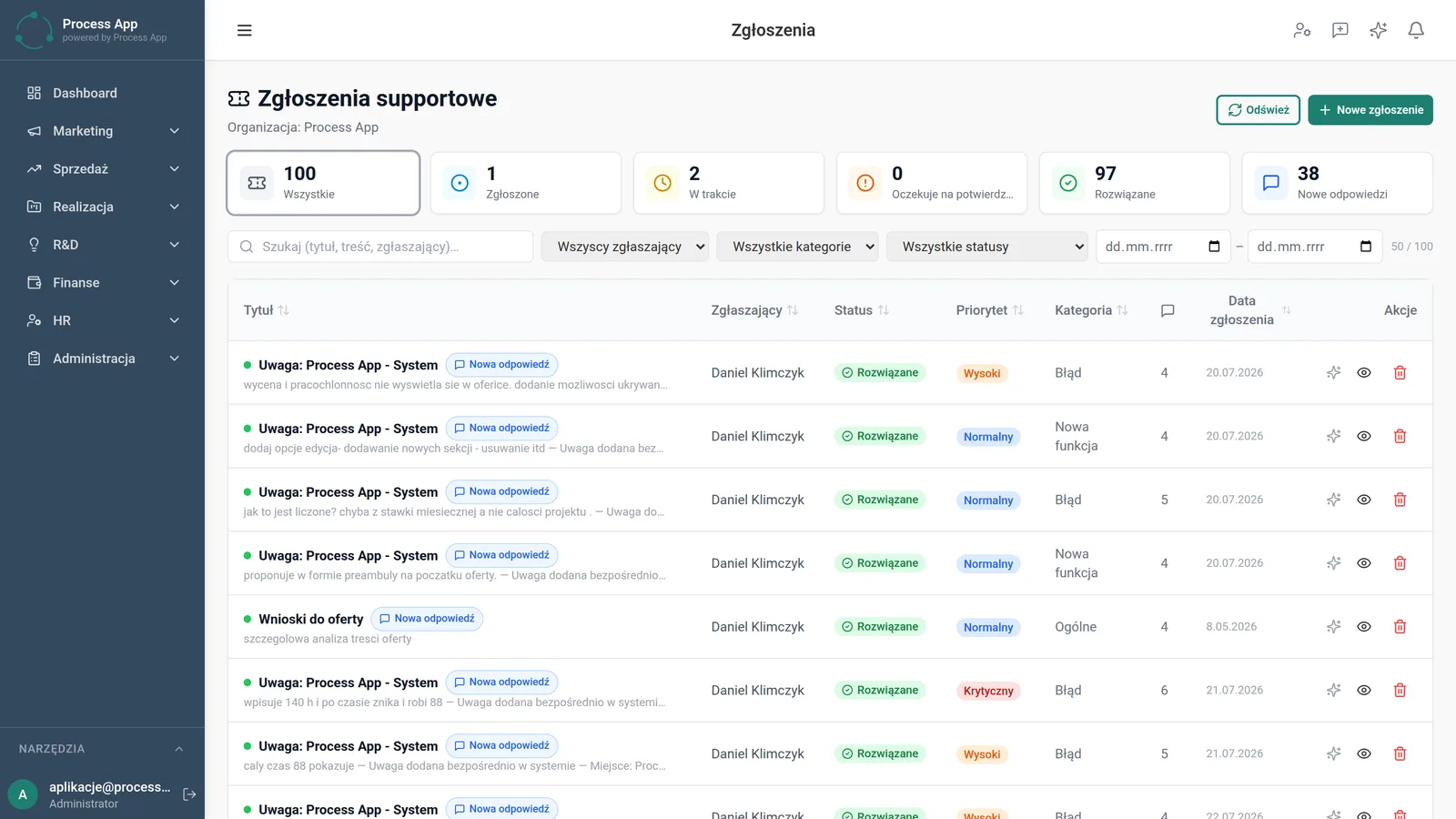
The Support tickets screen presenting a list of tickets in a table with status summary tiles and tools for filtering and searching.
What exactly you get
Comment mode with bubbles
Enables pinning comments directly to selected interface elements in the application.
Automatic screenshots
The system automatically generates a screenshot of the view and saves the location when a ticket is created.
Advanced list filtering
Allows you to narrow results by reporter, category, status and specific date range.
Status summary tiles
Present a numerical breakdown of tickets by new, in progress, resolved and pending.
Ticket creation and preview
Provides a button for manually adding new entries and row actions for preview and delete in the table.
What AI does for you in this process
Content-based category analysis
Artificial intelligence analyses the entered text and automatically assigns the ticket to the bug, new feature or general category.
Ticket priority assessment
Artificial intelligence analyses keywords in the title to suggest normal, high or critical priority.
Detection of similar issues
Artificial intelligence analyses the existing ticket base to prevent creating duplicates for the same error on a screen.
The process from start to finish
Report bugs and ideas for new features without leaving your current view using comment mode. Pin bubbles to specific places in the interface so the system automatically takes a screenshot and records the exact location. Review all your feedback on the Support tickets screen, where you can quickly check the current stage of each item. Use KPI tiles with statistics to instantly identify tickets in progress, resolved, or those with new replies. Filter the list by reporter, category, status and date range to easily find historical entries. Manage priorities and react in real time to labels indicating new responses from the support team. Create new tickets manually or refresh the view to always work with the most up-to-date data.
See this process on your own data
We will walk you through the “On-screen Feedback (Comment Mode)” module using your company as the example — the input, the flow and the end result in Process App.
Explore the remaining system modules
User and Permission Management
Support Ticket Handling
Optimization Analysis
AI prompts and automation management
Lead Generation
Prospecting

Cold Mailing
Cold Calling
Sales Opportunity Management
Quotation Preparation
Offer Preparation and Sending